


MCP servers in VS Code: install and configuration
For a few releases now, VS Code speaks the Model Context Protocol natively: an MCP server in VS Code exposes tools the agent can call in chat — browse a page, read a database, hit an API. There are two ways to add one: the Extensions view filtered to @mcp, and the .vscode/mcp.json configuration file. I walk through both with the Playwright example, then move on to settings, secrets and the output panel where you debug.
🔍 What an MCP server is in VS Code
The Model Context Protocol is an open standard for connecting models to external tools. Inside VS Code an MCP server provides tools — actions like file operations, queries, API calls — but also resources to attach as context and reusable prompts. The agent discovers them when the server starts and makes them available in chat.
Configuration lives in a JSON file with a single servers key: each entry is one server, identified by a name and by how it starts. Below is the minimal example we explain line by line through the rest of the article — a single stdio server launched with npx.
{
  "servers": {
    "playwright": {
      "command": "npx",
      "args": ["-y", "@microsoft/mcp-server-playwright"]
    }
  }
}
Official docs · MCP servers in VS Code ↗
⬇️ Install from @mcp in the Extensions view
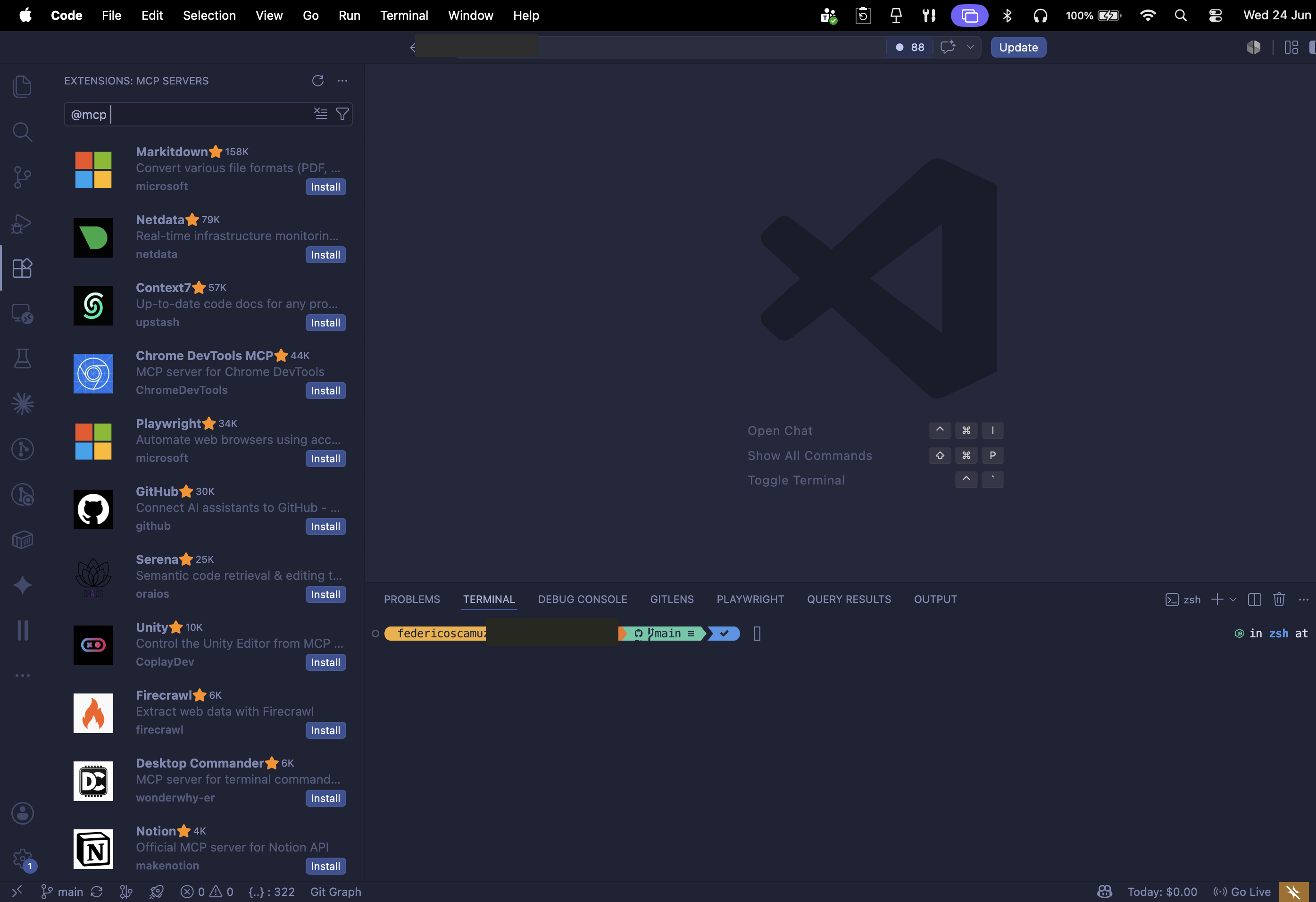
The fastest path is the MCP gallery. Open the Extensions view (⇧⌘X / Ctrl+Shift+X) and type @mcp in the search field: the list of available servers appears. To find a specific one, add its name, for example @mcp playwright.
With Install the server lands in your user profile and applies across every workspace; with a right-click and Install in Workspace it is written to the project's .vscode/mcp.json file, so you share it with the team. On first start VS Code asks you to confirm that you trust the server before launching it.
- ⇧⌘X (Ctrl+Shift+X) → Extensions view.
- Search @mcp, or @mcp playwright to filter.
- Install = user profile · Install in Workspace = .vscode/mcp.json.
The MCP gallery: Playwright is on the list, ready to install with one click.
⚙️ The other way: write .vscode/mcp.json by hand
Prefer control over the file? Create .vscode/mcp.json in the project and declare servers under the servers key. A stdio server has command and args; a remote server has type http and url. VS Code gives you IntelliSense over the schema and puts code lenses above each server to start, restart or stop it.
Don't want to write it from scratch? The MCP: Add Server command from the Command Palette (⇧⌘P) guides you and lets you pick Workspace or Global. For the user-profile file — the one that applies everywhere — use MCP: Open User Configuration. The file is .vscode/mcp.json, not .vscode/settings.json: a common mix-up.
Playwright (stdio, via npx) and GitHub (http) in one file; the code lenses start and restart each server.
🔐 Server settings: secrets, sandbox, on/off
Many servers want a token or a key. Don't write them in plain text in the file: use inputs — VS Code prompts for them and stores them — or environment variables via env. That way .vscode/mcp.json stays shareable with no secrets inside.
On macOS and Linux you can confine a stdio server with sandboxEnabled: it runs isolated and only reaches the file paths and domains you allow. To enable or disable a server without touching the file, use the MCP SERVERS - INSTALLED section in Extensions or MCP: List Servers: the enabled state is stored separately from the configuration.
{
  "inputs": [
    { "id": "gh-token", "type": "promptString", "password": true }
  ],
  "servers": {
    "github": {
      "type": "http",
      "url": "https://api.githubcopilot.com/mcp",
      "headers": { "Authorization": "Bearer ${input:gh-token}" }
    },
    "playwright": {
      "command": "npx",
      "args": ["-y", "@microsoft/mcp-server-playwright"],
      "sandboxEnabled": true
    }
  }
}
Official docs · MCP configuration ↗
💬 Use it in chat and pick the tools
Server started and trusted, its tools are in chat. Open the Chat view (⌃⌘I / Ctrl+Alt+I) and write a prompt that uses them. With Playwright, for instance, ask it to open a page and take a screenshot: VS Code invokes the browser tools and asks you to confirm each action.
Too many tools active? The Configure Tools button in the chat input lists them all and lets you toggle them on or off. Prompts exposed by the server are triggered with /server-name.prompt-name, and resources are attached from Add Context › MCP Resources.
Go to code.visualstudio.com, decline the cookie
banner and take a screenshot of the homepage.
Official docs · Tools in chat ↗
🐛 Debug: where to read the MCP server output
When a server won't start, VS Code shows an error indicator in chat. Click it and choose Show Output: the Output panel opens on the server's channel, with the log line by line. Alternatively, MCP: List Servers from the Command Palette, then select the server and choose Show Output.
The log shows the connection state, how many tools were discovered and any error. The classics: spawn npx ENOENT (Node or npx not on PATH), a wrong package in args, or a missing secret. It is the first place to look before touching the configuration.
Connection state, discovered tools and the typical error: spawn npx ENOENT.
✅ Apply and verify
The full loop is short: add the server (from @mcp or from .vscode/mcp.json), trust it on first start, use it in chat and, if something breaks, open the Output. Version .vscode/mcp.json with no secrets: tokens live in inputs or the environment, and the on/off state is already stored separately.
If you work in a Dev Container or over remote, define servers where they should run: in devcontainer.json under customizations.vscode.mcp, or in the remote user configuration. That way the containerized environment gets the same MCP servers without copying anything by hand.
- 01Add the serverFrom @mcp in Extensions or from .vscode/mcp.json.
- 02Trust it on first startVS Code asks for confirmation before launching.
- 03Use it in chatConfigure Tools to choose which tools are active.
- 04Debug from the OutputMCP: List Servers › Show Output to read the logs.
Frequently asked questions about MCP servers in VS Code
Where does VS Code store MCP server configuration?
In two places: .vscode/mcp.json in the workspace (shareable in the repo) and the user-profile file, which you open with MCP: Open User Configuration and which applies across every workspace. It is not .vscode/settings.json.
Install from @mcp or write mcp.json by hand?
@mcp in Extensions is faster and managed; .vscode/mcp.json gives control and is versioned with the project. Often you start from @mcp and refine the file by hand: they do the same thing.
Where do I see the logs when an MCP server won't start?
In the chat error indicator → Show Output, or MCP: List Servers → server → Show Output. There you read the connection state, discovered tools and the error — such as spawn npx ENOENT when Node is not on PATH.
Let's talk
If this topic is relevant to you, write to me: comparing notes on code and AI is always time well spent.